Dual Axis Plot Tool - Cut-off values
In the earlier blog post we continued sharing more details on a browser-based Dual Axis Plot widget, which allows to plot metrics like speed, heart rate or cadence simultaneously over the route sections. In this post we'll provide a bit more details on how to use cut-off values.
To cover this topic, we'll use the data from the recent half marathon race in Saarbrücken.
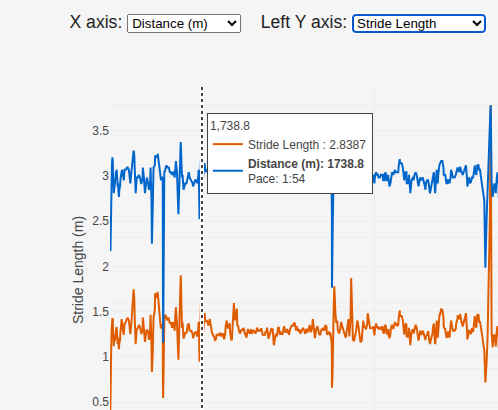
The data look pretty good, however, there are some outliers which don't seem reasonable.
For example, the stride length reaching up to 2.83m might be good for an elite world-class 100m sprinter, but it isn't really typical for an amateur runner.
Stride length outlier:
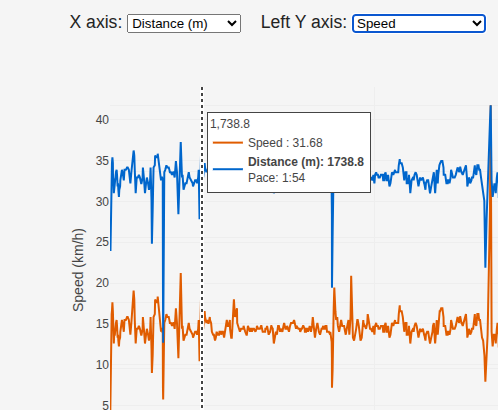
Speed outlier:
Cadence:
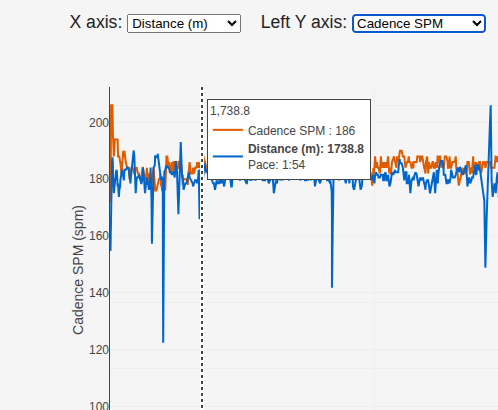
Stride length is calculated from speed and cadence readouts. As it can be seen in the screenshots, cadence seems pretty fine, but the speed is too high. Zoom-in in the next screenshot reveals that the spike follows quite a deep drop:
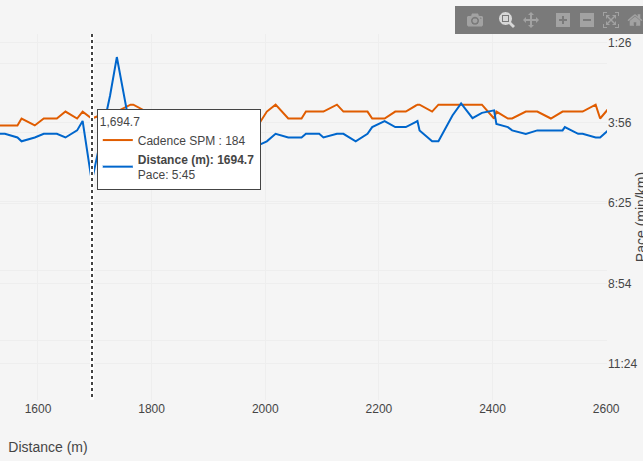
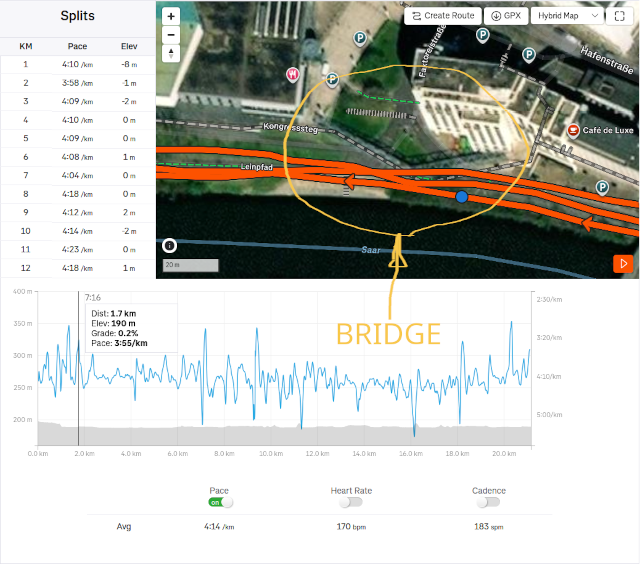
Usually this kind glitches can be explained by a low GPS signal, caused by obstructions blocking line-of-sight to satellites, such as buildings, trees, tunnels or bridges. That means, the sensor tries to compensate erroneously low readouts by higher spikes in the following meters, when the signal is back.
To confirm this theory or prove it wrong, we located the exact place, where the glitch happened, in the map, there's indeed a bridge there.
 Source: Strava
To handle such cases properly, the dual axis plot widget provides a nice feature, it allows to set thresholds for too low or too high values.
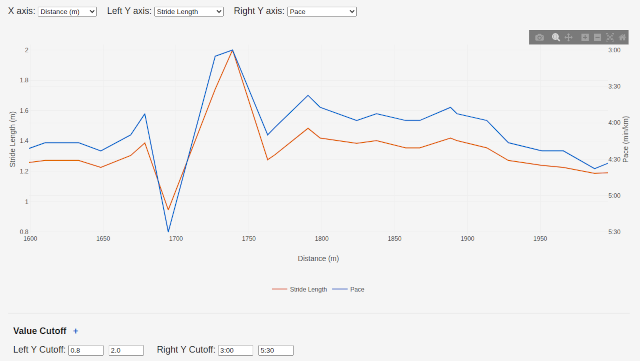
After cut-off values are applied, the zoomed-in plot still shows the drop and the spike as before, but the difference between the lowest and the highest values is more acceptable now, and date shown in the plot get more meaningful in general.
In the next posts, we'll continue with other advanced features of the plotting tool which make the data even more insightful.