Dual Axis Plot Tool - Basic plot controls
 In the previous blog post we introduced a small browser-based Dual Axis Plot widget, which allows to overlay two metrics at once, smooth noisy readouts, and apply basic data preprocessing techniques to the specified metrics (speed, heart rate, cadence, etc) over the route sections. In this post we'll provide a bit more details on how to use plot controls.
You can find the widget via the Tools menu of the website.
1. The same way as in the previous post, upload a .tcx file with your running data in the first step, then select distance or time for X axis, and the desired metrics for left Y (and right Y, if needed) axes. We'll use the same tcx file recorded at our the most recent race - 20th. GO! Halbmarathon Saarbrücken, on 15 Mar 2026. For those who wants to see the data, the activity can be found in Strava.
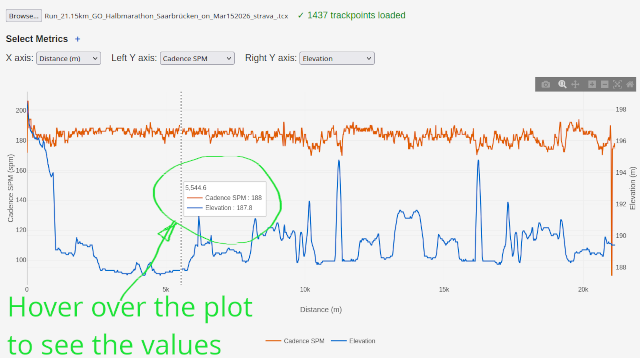
2. Hover over the plot to see the values in a particular point. When hovering, the tooltip will show the value on the X, left Y and right Y axes.
3. Select and zoom in your region of interest. One can also use a selection tool to define a region of interest, that can be zoomed in.
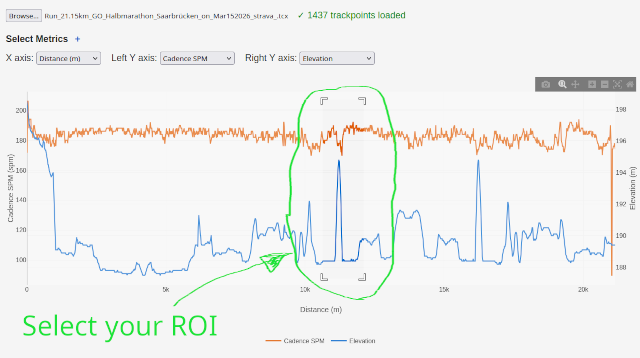
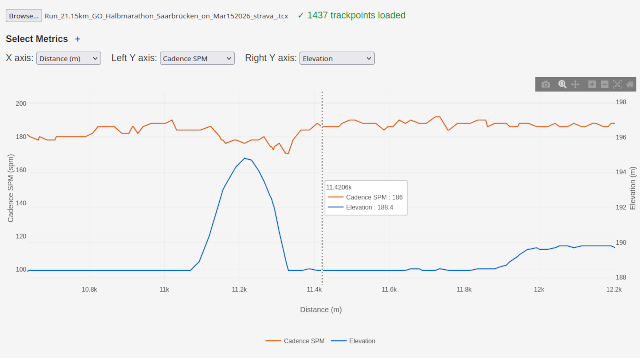
After the ROI is selected, the plot is re-drawn, to present the selected area in details, which can be especially useful for exploring extreme or unusual values in the plot, like spikes or sharp drops. Here's how the zoomed in spike looks like:
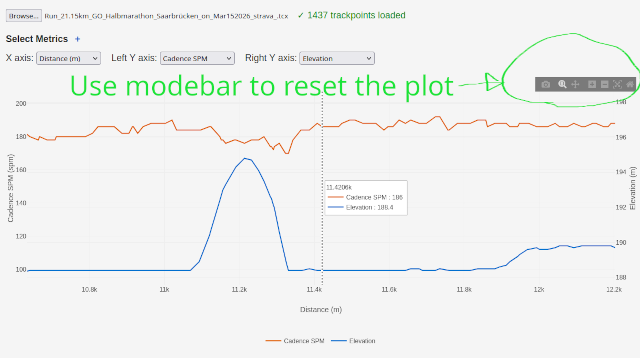
3. Use modebar to control the axes. Modebar on the right side of the plot will help to zoom out, zoom in, drag the graph to the left/right sides in order to find a specific point, reset the plot to the initial state, or even download the plotted graph as an image (which is kind of nice and probably more convenient than taking a screenshot).
In the next blog posts, we'll show which features of the widget can help to filter out noisy data.