Dual Axis Plot Tool - Intro. Dig deeper into your running data
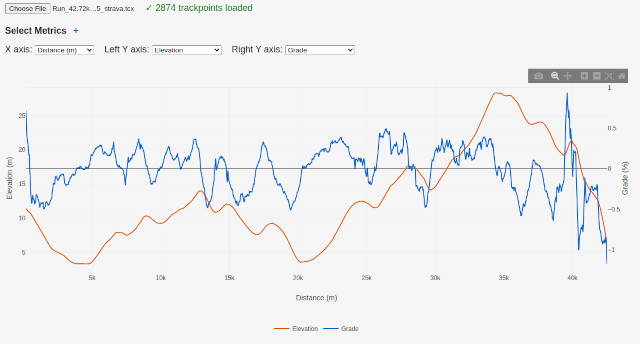 As we discovered in the previous blog posts, digging running data from TCX files can bring plenty of insights on running performance, and maybe even current level of fitness in general. Here we'll introduce a small browser widget, which allows to dig straight into the running data, even deeper than Garmin Connect or Strava typically allow.
The key features of this particular widget are overlaying two metrics at once, smoothing noisy readouts speed or elevation, and checking consistency of specified metrics (speed, heart rate, cadence, etc) over the route sections, by means of applying basic data preprocessing techniques. All that can be done directly on the widget's webpage in the browser, no data are going to leave your device.
You can find the widget via the Tools menu of the website.
So, let's get started.
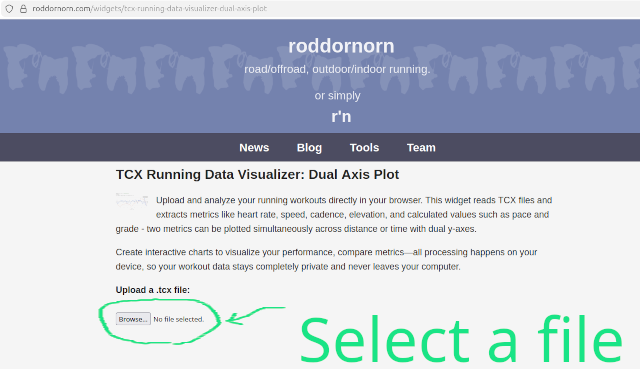
1. As the first step, upload a .tcx file with your running data. It can be exported from Garmin Connect, Strava, or other platforms.
For this purpose, we'll take a tcx file recorded at our most recent race - 20th. GO! Halbmarathon Saarbrücken, on 15 Mar 2026.
For those who wants to see the data, the same activity can be found in Strava.
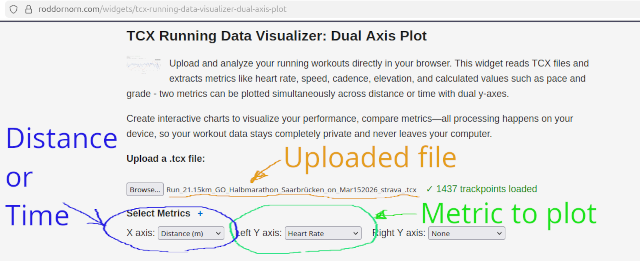
2. When the file is loaded, one can use the dropdown menus to select distance or time for the X-axis, and the value to plot for the left Y-axis.
3. (Optionally) Select metric for right Y axis. The dropdown menu on the right side, that has 'None' value by default, optionally selects one more metric to plot, for the right Y-axis. The legend below the graph explains which color of the line corresponds to which of the values.
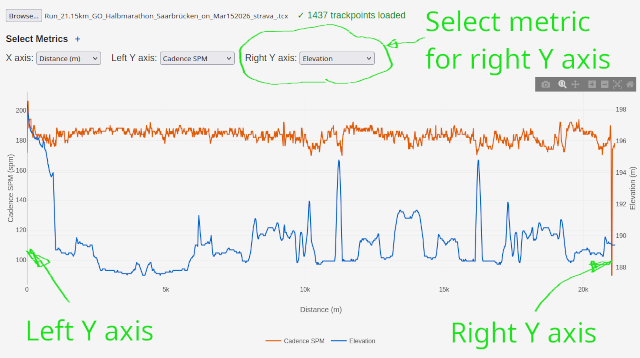
4. Get your data plot ready Here it is 👍 If you use a mobile device, you might want to rotate the device into the landscape mode, to give more horizontal space for the graph. Enjoy!
In the next blog posts we'll show more features of the widget and some use cases for those features: